JPK CIT is the obligation to send your accounting books and fixed asset register to the Polish tax office as XML files. The files are prepared after the tax year is closed. In mKsiegowa.pl you generate both files, JPK_KR_PD and JPK_ST_KR, from data that is already in the program, using the English user interface. This guide explains what to prepare and how to generate the files step by step.
What is JPK CIT
JPK CIT (Jednolity Plik Kontrolny for corporate income tax) consists of two structures:
- JPK_KR_PD: the accounting books supplemented with tax data. It contains the journal, the trial balance with account tags, the list of customers and suppliers, and the reconciliation of accounting profit with taxable income.
- JPK_ST_KR: the register of fixed assets and intangible assets.
Who must file it and when
The obligation is being introduced in stages:
- from 1 January 2025: tax capital groups and taxpayers with revenue above EUR 50 million,
- from 1 January 2026: other CIT taxpayers that are required to file JPK_V7 (the VAT file),
- from 1 January 2027: all remaining CIT taxpayers.
The obligation applies to tax years starting after these dates. The files are due together with the annual CIT-8 return, i.e. by the end of the third month after the end of the tax year.
Example: a Polish limited liability company (sp. z o.o.) with a calendar tax year that files JPK_V7 sends its first JPK CIT for 2026. The deadline is 31 March 2027.
Before you start: three things to prepare
1. Account tags (Tmap codes)
Every account in the trial balance needs a tag that shows where it belongs in the financial statements. In the program this tag is called a Tmap code.
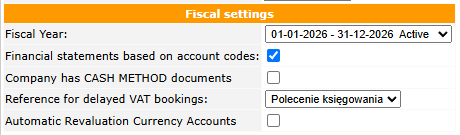
- In Setup > Company Setup, tick Financial statements based on account codes and save. The JPK CIT Statements item appears in General Ledger > Inquiries and Reports.
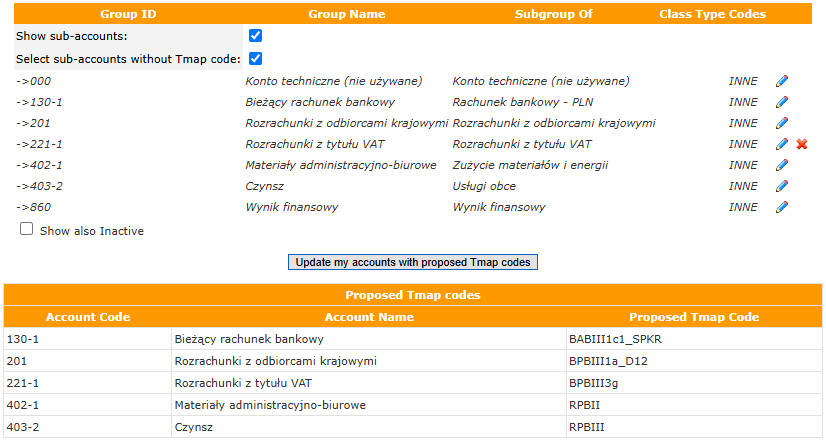
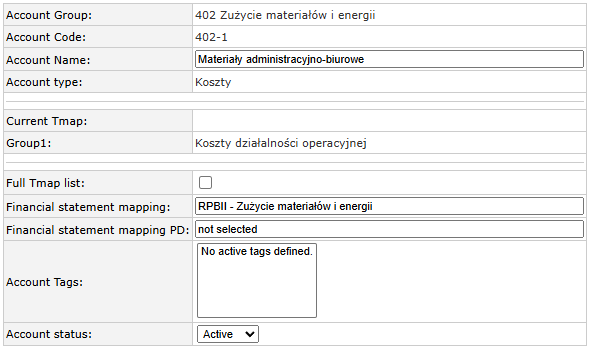
- Assign tags to accounts. In General Ledger > Maintenance > GL Account Groups, tick Show sub-accounts and click the edit icon (pencil) next to an account. The account form appears below the list, where you set Financial statement mapping. The Full Tmap list option lets you search the full path of financial statement items instead of the short name only.
- You do not have to tag every account by hand. In General Ledger > Maintenance > GL Account Groups, tick Show sub-accounts and Select sub-accounts without Tmap code to list untagged accounts. Then click Propose Tmap codes for my accounts. The program matches codes based on the beginning of the account number. Review the proposals and save them with Update my accounts with proposed Tmap codes.
2. A closed fiscal year
JPK CIT can only be generated for a closed fiscal year. If no year is closed yet, the program tells you so. You close the year in Setup > Fiscal Years.
3. Company data
The file header and taxpayer data come from the company settings: tax ID (NIP), full name, address (including voivodeship, county and municipality) and the tax office code. Check them before generating the file. If a required field is missing, the program does not create the file and shows an error.
How to generate JPK_KR_PD
- Open General Ledger > Inquiries and Reports > JPK CIT Statements.
- In Prepare a new JPK File, choose JPK_KR_PD, and in Reporting fiscal year choose a closed year. The most recent closed year is selected by default.
- Review the tabs:
- Header: reporting period, purpose (new declaration or adjustment), tax office code.
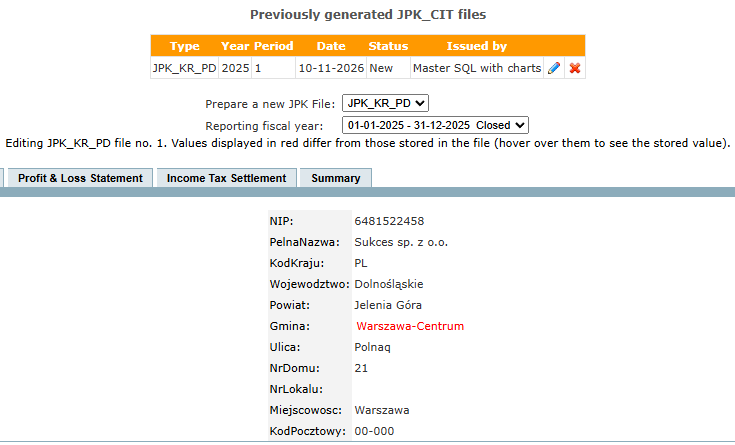
- Basic Company Data: identification data and address.
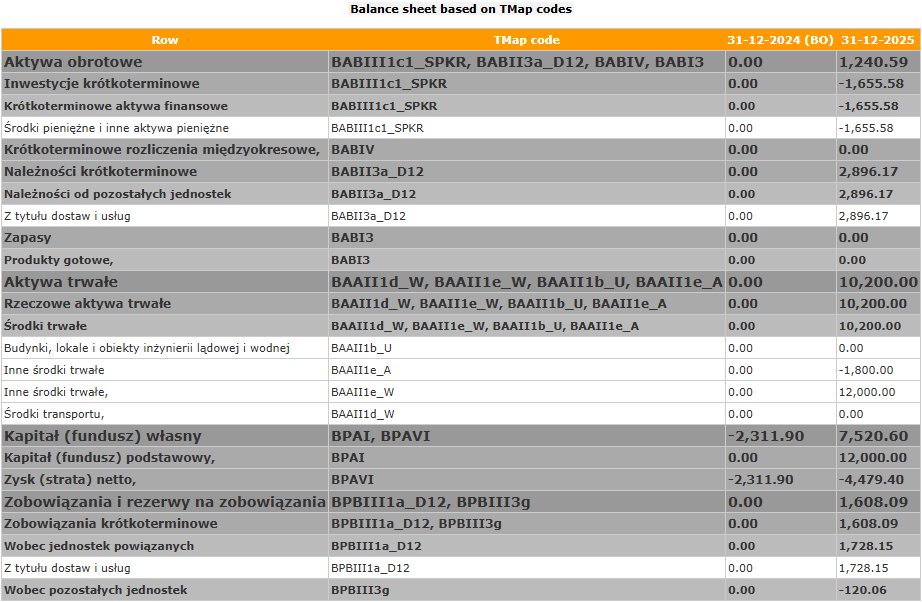
- Balance Statement and Profit & Loss Statement: a preview built from the account tags. This is the place to spot accounts with a missing or wrong tag.
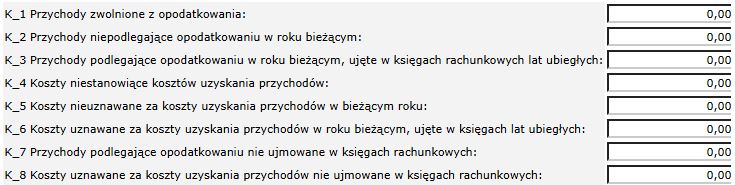
- Income Tax Settlement: enter amounts K_1 to K_8 (see below).
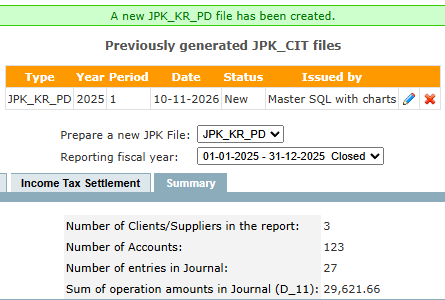
- Summary: the number of customers and suppliers, accounts and journal entries, and the total of journal amounts, for a quick check against your books.
- Click Generate XML file. The file is saved in the Previously generated JPK_CIT files list and downloaded to your computer.
What the file contains
- Journal: every transaction with its debit and credit postings, document number, dates, description and the user who entered it. For invoices exchanged through KSeF, the program adds the KSeF document number.
- Trial balance: for every account the opening balance, turnover for the period, cumulative turnover and closing balance, with the account tag.
- Customers and suppliers with postings in the year, with their tax IDs.
- Control totals: the number of entries and the debit and credit totals.
Income tax settlement (K_1 to K_8)
Differences between accounting profit and taxable income do not come directly from the books, so you enter them on the Income Tax Settlement tab:
| Field | Meaning |
|---|---|
| K_1 | tax-exempt revenue |
| K_2 | revenue not taxable in the current year |
| K_3 | revenue taxable in the current year, recorded in the books of previous years |
| K_4 | non-deductible costs |
| K_5 | costs not deductible in the current year |
| K_6 | costs deductible in the current year, recorded in the books of previous years |
| K_7 | taxable revenue not recorded in the books |
| K_8 | deductible costs not recorded in the books |
The amounts are kept while you switch between tabs.
How to generate JPK_ST_KR
Choose JPK_ST_KR and the year. The program takes the data from the fixed assets module: inventory number, acquisition date, date put into use, name and the depreciation charge for the year. The Summary tab lists all assets that go into the file. If there are no fixed assets in the year, no empty file is created.

Adjusting JPK_KR_PD
Any further JPK_KR_PD file for the same period is automatically marked as an adjustment. You can also open a saved file with the Edit button. The program then compares the saved values with the current data in your books and shows every changed value in red. Hover over a value to see what was in the saved file. Amounts K_1 to K_8 are loaded from the saved file, so you do not need to enter them again.
Only the latest file of a period (the declaration or its latest adjustment) can be edited or deleted.
Sending the file with Klient JPK WEB
The program prepares the XML file and downloads it to your computer. You send it to the tax authorities with the Ministry of Finance application Klient JPK WEB:
- Download the JPK_KR_PD file from the program (it is downloaded automatically when you click Generate XML file).
- Open Klient JPK WEB and load the XML file. The application recognises the structure and prepares the document for sending.
- Sign the file with a Trusted Profile (Profil Zaufany) or a qualified electronic signature.
- Send the file to the Ministry of Finance system.
- When the document has been processed, check its status and download the official receipt (UPO).
Who signs the file:
| Taxpayer | Signature |
|---|---|
| Limited liability company (sp. z o.o.) | Trusted Profile or qualified signature of an authorised person |
| Joint-stock company (S.A.) | Trusted Profile or qualified signature of an authorised person |
| Accounting office | signature of the person authorised to sign JPK files |
Frequently asked questions
Can I prepare JPK CIT for a year that is not closed?
No. Only closed fiscal years can be selected.
What if an account has no tag?
Add it before generating the file. Untagged accounts are listed in GL Account Groups, and the program can propose codes for you.
Do I have to re-enter K_1 to K_8 after correcting the books?
No. When you edit a saved file, these amounts are loaded from it.
Try it
Running a company in Poland with full accounting? See how mKsiegowa.pl accounting software prepares JPK CIT from your own data, in English.